OverTheWire Bandit Walkthrough Levels 0 – 33
A comprehensive, step-by-step walkthrough for solving OverTheWire Bandit levels 0–33. Learn essential Linux commands and hacking techniques with practical examples and screenshots.
⚠️ Disclaimer: This walkthrough is for educational purposes only. The goal is to help you understand basic Linux commands and practice your own skills. Please try solving each level yourself first it’s the best way to learn!
✅ Level 0 → 1
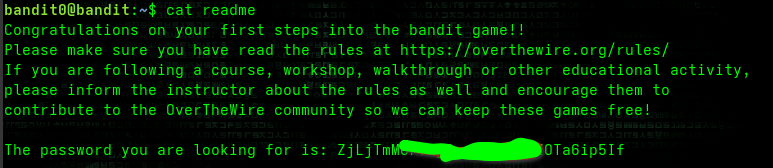
Goal: Get the password for level 1 from the readme file.
- The
catcommand (concatenate) is used to view or combine text files:1
cat readme - Example: Combine files:
1
cat hello.txt hi.txt > combine.txt
- You can also use
stringsto extract printable ASCII text:1
strings readme
✅ Level 1 → 2
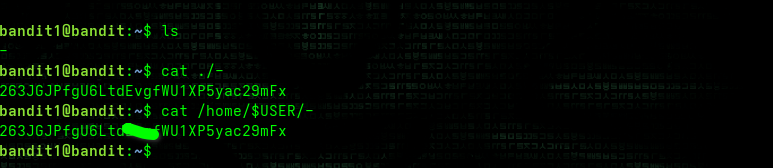
Goal: Read a file named -.
-is treated as standard input by many Linux commands, socat -waits for keyboard input.- To read a file literally named
-, use:1 2 3
cat ./- # or cat /home/$USER/-
✅ Level 2 → 3
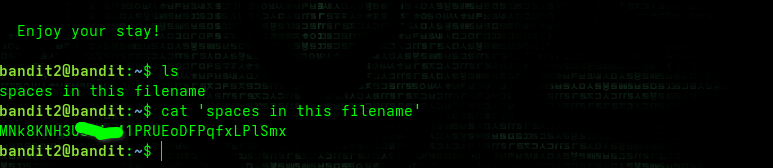
Goal: Read a file with spaces in its name.
- Spaces break filenames into separate arguments. Wrap the name in quotes:
1
cat 'spaces in this filename'
✅ Level 3 → 4
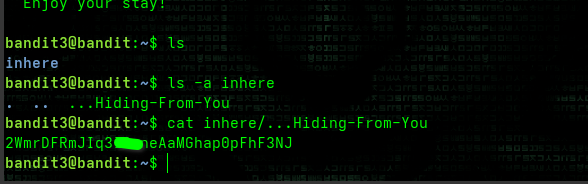
Goal: Find a hidden file (starts with .).
- Use
ls -ato list all files, including hidden ones. - Then
catthe hidden file:1 2 3 4
ls -a inhere cat inhere/.hiddenfile # Example actual: cat inhere/...Hiding-From-You
✅ Level 4 → 5
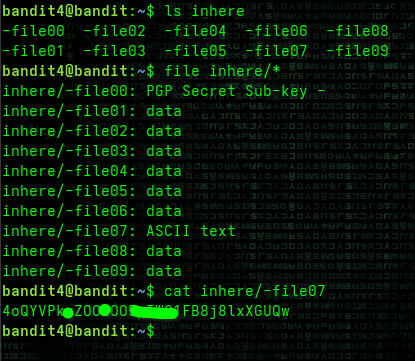
Goal: Read the only human-readable file.
- Use
fileto check file types:1 2 3
ls inhere file inhere/* cat inhere/-file07 # The only ASCII text file
✅ Level 5 → 6
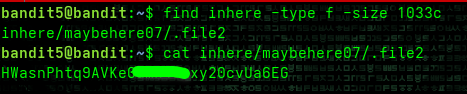
Goal: Find a file that is human-readable, 1033 bytes in size, and not executable.
- Use
findwith-type fand-size:1
find inhere -type f -size 1033c
✅ Level 6 → 7
Goal: Find a file owned by user bandit7, group bandit6, and 33 bytes in size.
- Search from root
/:1
find / -size 33c -user bandit7 -group bandit6 2>/dev/null
2>/dev/nullhides permission errors.

✅ Level 7 → 8
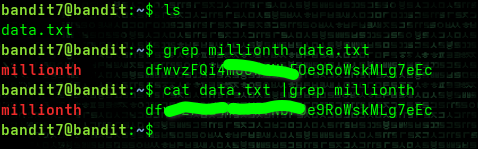
Goal: Find the password in data.txt next to the word millionth.
- Use
grep:1 2 3
grep millionth data.txt # or cat data.txt | grep millionth
✅ Level 8 → 9
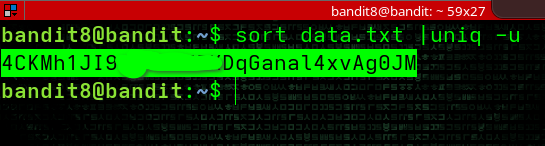
Goal: Find the only unique line in data.txt.
sortfirst, thenuniq:1
sort data.txt | uniq -u
✅ Level 9 → 10
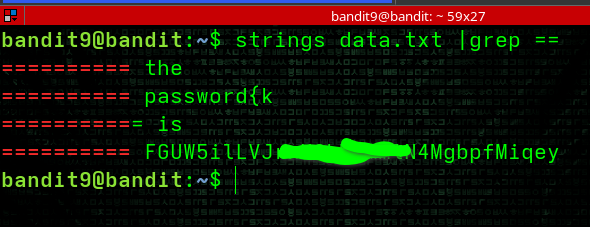
Goal: Extract human-readable text mixed with binary noise.
- Use
stringsto print ASCII, pipe togrep:1
strings data.txt | grep ===
✅ Level 10 → 11
Goal: Decode the base64-encoded password in data.txt.
- Base64 is a common encoding scheme used to represent binary data in ASCII format.
- The
base64command with-dflag decodes base64 content:1 2 3 4
cat data.txt echo Vgh***************Cg== |base64 -d # or cat data.txt | base64 -d

✅ Level 11 → 12
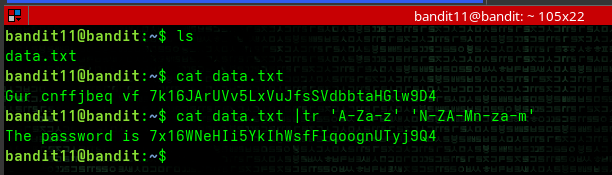
Goal: Decode text where all lowercase and uppercase letters have been rotated by 13 positions (ROT13).
- ROT13 is a simple letter substitution cipher that replaces a letter with the 13th letter after it.
- Use
trcommand to translate characters:1 2 3
ls cat data.txt cat data.txt | tr 'A-Za-z' 'N-ZA-Mn-za-m'
✅ Level 12 → 13
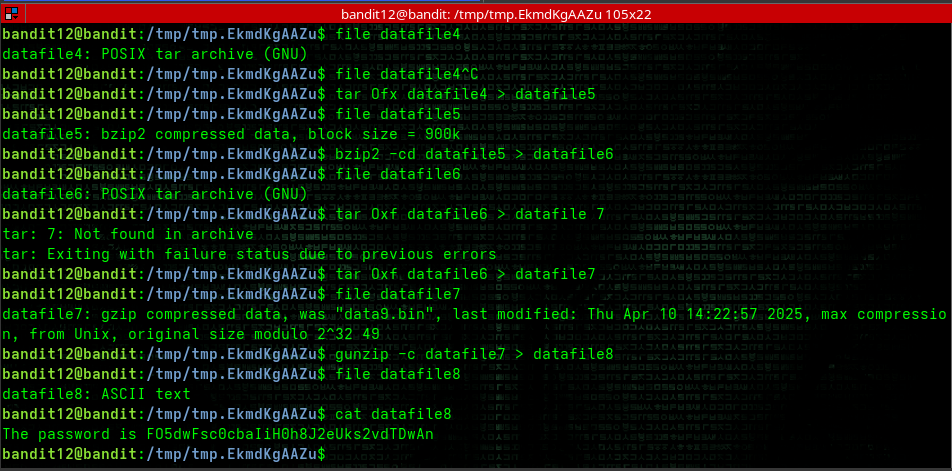
Goal: Recover original file from a hexdump that has been repeatedly compressed.
Check the file type:
1
file datafile
Use various decompression tools as needed:
1
2
3
4
gunzip -c datafile > datafile(number)
bzip -cd datafile > datafile(number)
tar Oxf datafile > datafile(number)
cat datafile
This level requires you to repeatedly check file types with file and decompress using the appropriate tool until you reach the plaintext password.
i used the -0 argument for tar and -c argument for both gunzipand bzip to stdout the conversion so i can use the redirection symbol to store the output in a specified filename to make file identification/management much easier
✅ Level 13 → 14
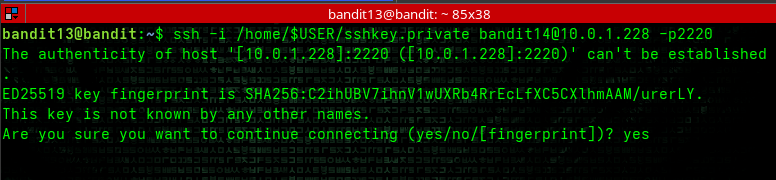
Goal: Use a private SSH key to access the next level.
- Use the private SSH key provided:
1
2
ls
ssh -i sshprivatekey bandit14@localhost -p2220
✅ Level 14 → 15
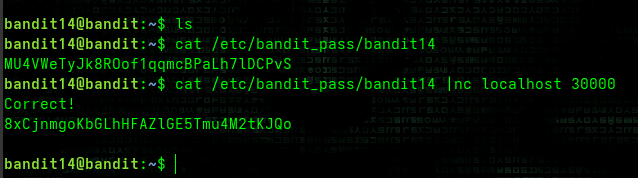
Goal: Submit the current level’s password to port 30000 on localhost.
- Get the current password and submit it:
1
2
cat /etc/bandit_pass/bandit14
cat /etc/bandit_pass/bandit14 | nc localhost 30000
✅ Level 15 → 16
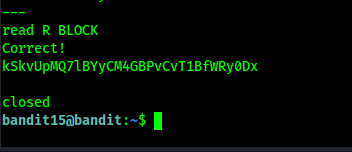
Goal: Submit the current level’s password to localhost on port 30001 using SSL encryption.
- Use OpenSSL to create an encrypted connection:
1
echo 8xCjnmgoKbGLhHFAZlGE5Tmu4M2tKJQo | openssl s_client -connect localhost:30001 -ign_eof

✅ Level 16 → 17
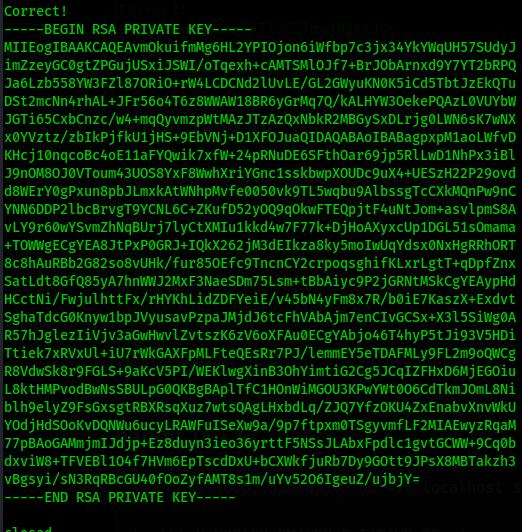
Goal: Find which port between 31000-32000 speaks SSL and returns a different response.
Find all open ports in the range:
1
for x in {31000..32000}; do nc -zv localhost $x 2>&1 | grep suc; done
Connect to each open port with SSL until you find the correct one:
1
echo kSkvUpMQ7lBYyCM4GBPvCvT1BfWRy0Dx | openssl s_client -connect localhost:31790 -ign_eof
Copy the returned private key and save it to a file on your local machine:
1
2
# Save as bandit17.private
chmod 600 bandit17.private

✅ Level 17 → 18
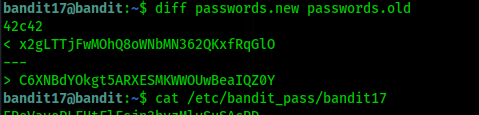
Goal: Find the only line that differs between passwords.old and passwords.new.
Use the private key from the previous level to log in:
1
2
chmod 600 bandit17.private
ssh -i bandit17.private bandit17@bandit.labs.overthewire.org -p 2220

Compare the two files:
1
diff passwords.old passwords.new
✅ Level 18 → 19
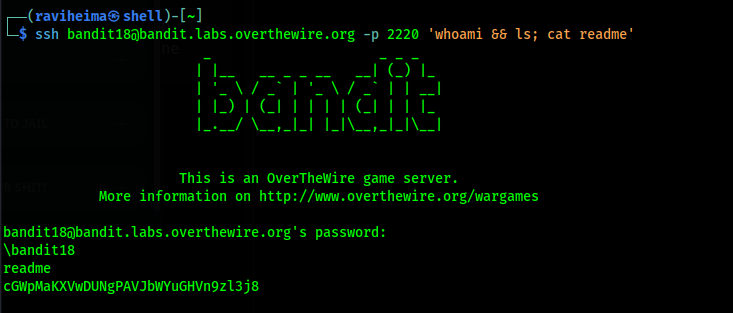
Goal: The .bashrc file logs you out as soon as you log in. Get the password from readme.
- Execute a command directly through SSH:
1
ssh bandit18@bandit.labs.overthewire.org -p 2220 'whoami && ls; cat readme'
✅ Level 19 → 20
Goal: Use a setuid binary to read the password for the next level.
- The
bandit20-dobinary runs commands as the bandit20 user:1
./bandit20-do cat /etc/bandit_pass/bandit20

✅ Level 20 → 21
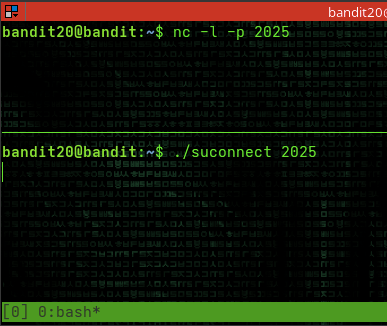
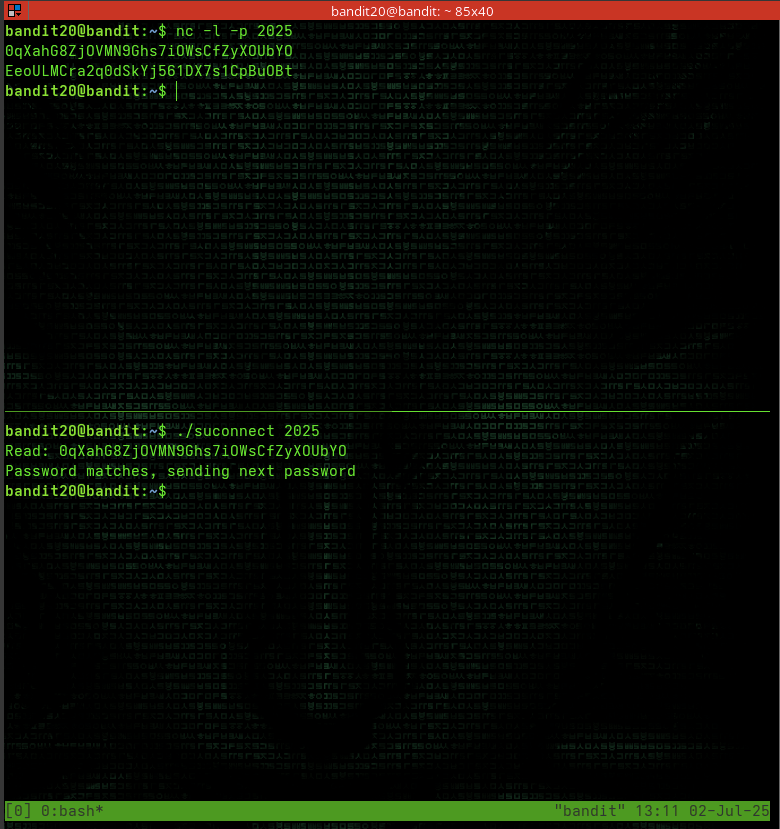
Goal: Use a binary that connects to a port you specify and validates the current level’s password.
Set up a listener in one terminal:
1
nc -l -p 2025
Run the binary in another terminal:
1
./suconnect 2025
When prompted, enter the current level’s password in the listener terminal.
✅ Level 21 → 22
Goal: Find out how the cronjob is configured and what it does.
Check the cron jobs:
1
cat /etc/cron.d/cronjob_bandit23*
Examine the script that’s being run in
/usr/bin/cronjob_bandit23.sh:1
strings /usr/bin/cronjob_bandit22.sh
1
2
3
#!/bin/bash
chmod 644 /tmp/t7O6lds9S0RqQh9aMcz6ShpAoZKF7fgv
cat /etc/bandit_pass/bandit22 > /tmp/t7O6lds9S0RqQh9aMcz6ShpAoZKF7fgv
1
2
3
4

3. Read the password from the file created by the cron job:
   ```bash
   cat /tmp/t7O6lds9S0RqQh9aMcz6ShpAoZKF7fgv
✅ Level 22 → 23
Goal: Find out what the cronjob is doing and exploit it.
Examine the cron configuration:
1
2
ls /etc/cron.d/
cat /etc/cron.d/cronjob_bandit23
Check the script:
1
strings /usr/bin/cronjob_bandit23.sh
The script creates an MD5 hash from “I am user bandit23” and uses it as a filename:
1
2
3
mytarget=$(echo I am user bandit23 | md5sum | cut -d ' ' -f 1)
echo $mytarget
# 8ca319486bfbbc3663ea0fbe81326349
Read the password from the corresponding file:
1
cat /tmp/8ca319486bfbbc3663ea0fbe81326349
✅ Level 23 → 24
Goal: Create a script that will be executed by the cronjob and give you access to the next level’s password.
Create a working directory:
1
2
3
mkdir /tmp/avatar
chmod 777 /tmp/avatar
cd /tmp/avatar
Create a script to read the next level’s password:
1
2
3
nano epass # add the line below to the epass file
cat /etc/bandit_pass/bandit24 > /tmp/avatar/p.txt
1
chmod +x epass #make the file executable
Copy it to where the cron job will find it:
1
cp epass /var/spool/bandit24/foo/epass
Wait for the cron job to run, then check the output:
1
2
3
ls
p.txt
cat p.txt
✅ Level 24 → 25
Goal: Brute force a 4-digit PIN code to get the password.
- Create a script to try all possible PIN combinations:
1
2
3
for x in $(seq -w 0000 9999); do
  echo "gb8KRRCsshuZXI0tUuR6ypOFjiZbf3G8 $x"
done | nc localhost 30002
✅ Level 25 → 26
Goal: Exploit the shell login process to gain access to level 26.
SSH in with the private key:
1
ssh -i user@host -p 2220
- The trick here is to make your terminal window very small or enlarge the text:
- This forces the
morecommand to be active when displaying the banner
- This forces the
Once in
more, pressvto open vim:1
:e /etc/bandit_pass/bandit26 # to open the password file
- Then get a shell from vim:
1
2
:set shell=/bin/bash
:shell
✅ Level 26 → 27
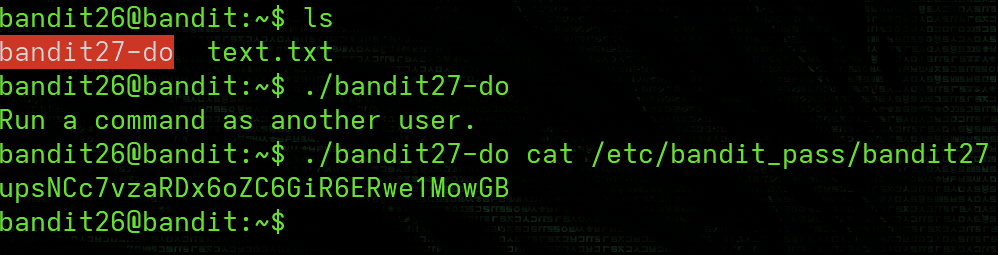
Goal: Use the setuid binary to get the password for the next level.
- Once you have a shell from level 26:
1
2
ls
./bandit27-do cat /etc/bandit_pass/bandit27
✅ Level 27 → 28
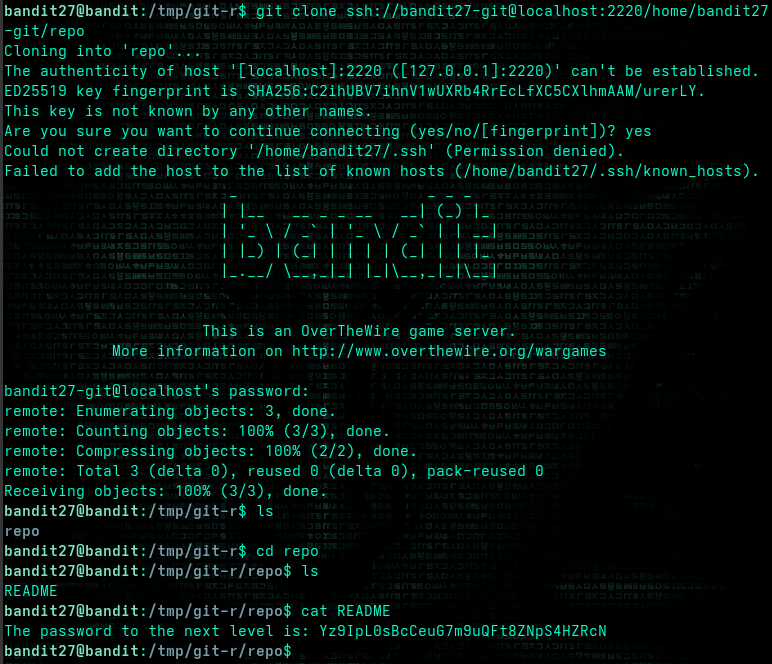
Goal: Clone a Git repository to find the password.
1
2
3
4
5
mkdir -p /tmp/git-r
cd /tmp/git-r
git clone ssh://bandit27-git@localhost:2220/home/bandit27-git/repo
cd repo
cat README
✅ Level 28 → 29
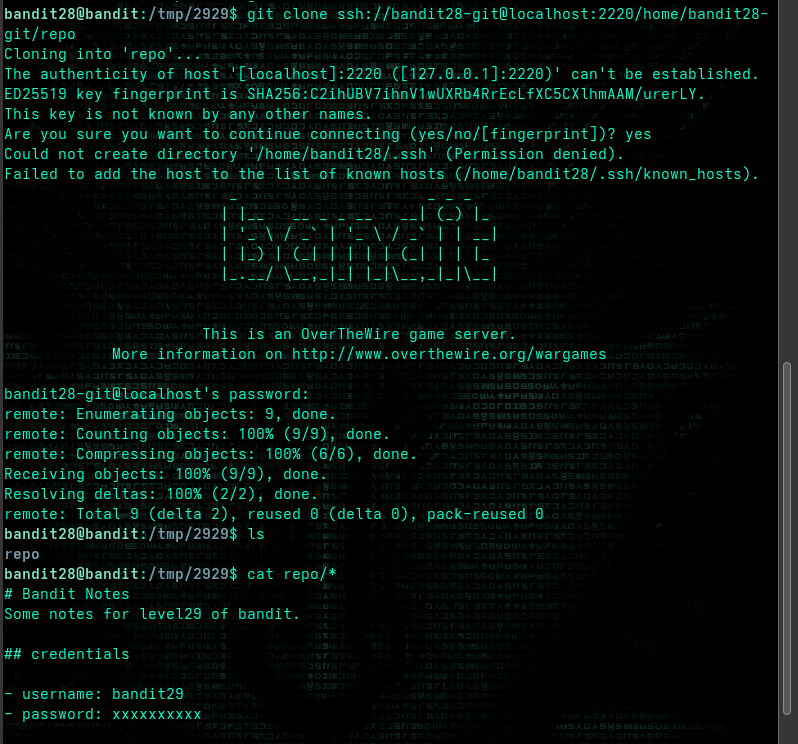
Goal: Find a password that was removed from the current version of a file.
1
2
3
4
5
mkdir -p /tmp/2929
cd /tmp/2929
git clone ssh://bandit28-git@localhost:2220/home/bandit28-git/repo
cd repo
cat README.md
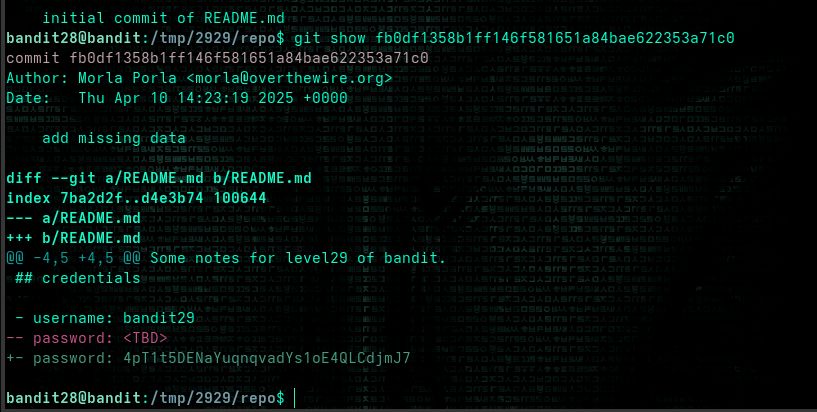
Notice that the password has been replaced with “xxxxxxxxxx”. Check the git history:
1
2
git log
git show fb0df1358b1ff146f581651a84bae622353a71c0
✅ Level 29 → 30
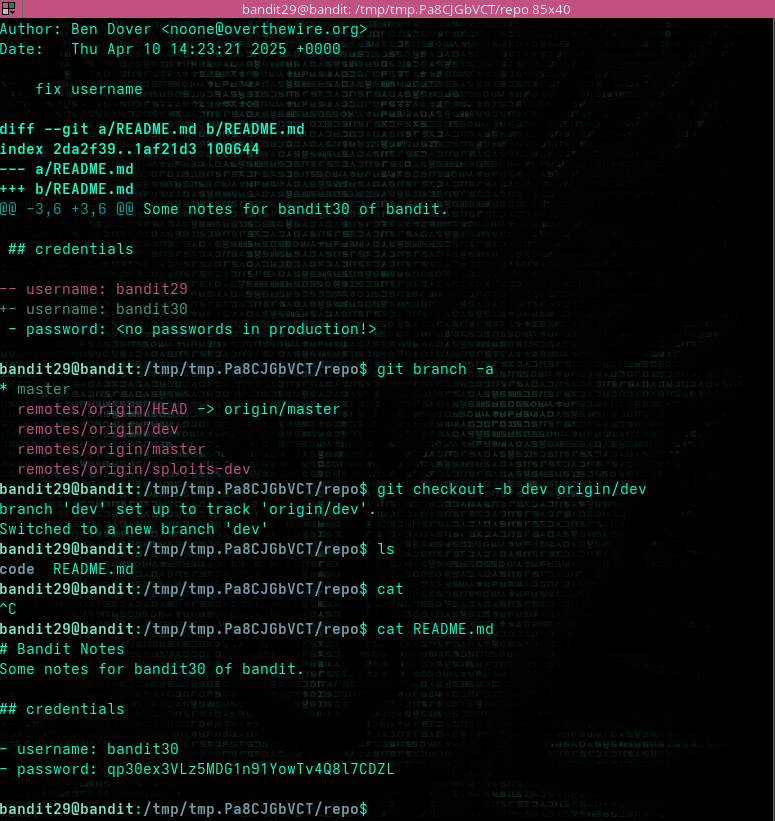
Goal: Find a password that’s not in the production branch.
1
2
3
4
5
mkdir -p /tmp/tmp.Pa8CJGbVCT
cd /tmp/tmp.Pa8CJGbVCT
git clone ssh://bandit29-git@localhost:2220/home/bandit29-git/repo
cd repo
cat README.md
The message says “no passwords in production!” Check other branches:
1
2
3
git branch -a
git checkout -b dev origin/dev
cat README.md
✅ Level 30 → 31
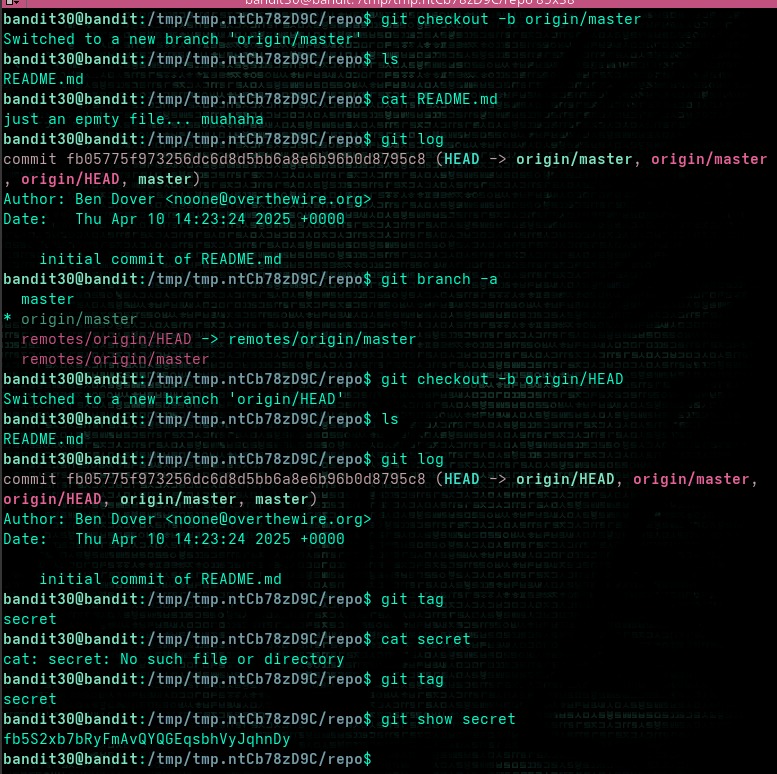
Goal: Find a password that’s stored in a Git tag.
1
2
3
4
5
mkdir -p /tmp/tmp.ntCb78zD9C
cd /tmp/tmp.ntCb78zD9C
git clone ssh://bandit30-git@localhost:2220/home/bandit30-git/repo
cd repo
cat README.md
Check for tags:
1
2
git tag
git show secret
✅ Level 31 → 32
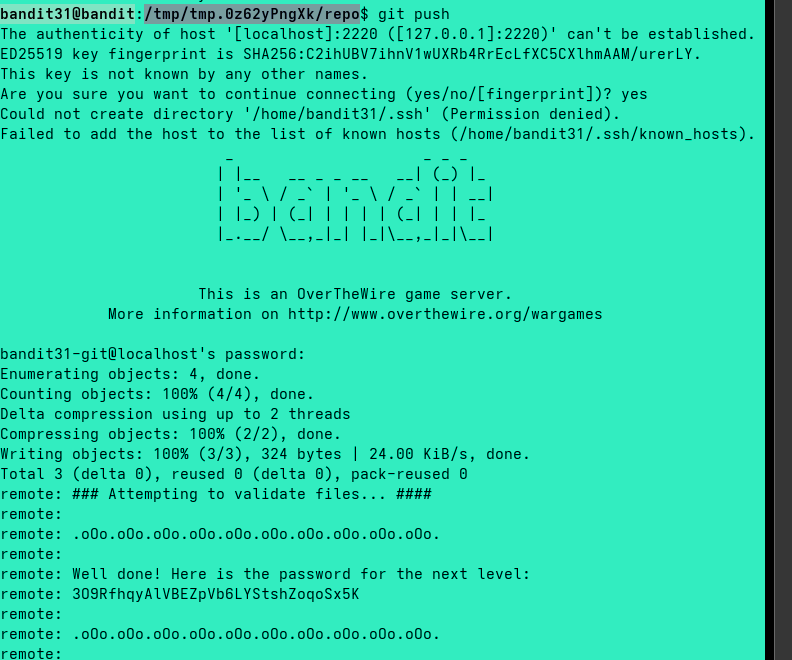
Goal: Push a file to the remote repository to get the password.
1
2
3
4
5
mkdir -p /tmp/tmp.0z62yPngXk
cd /tmp/tmp.0z62yPngXk
git clone ssh://bandit31-git@localhost:2220/home/bandit31-git/repo
cd repo
cat README.md
Following the instructions in README:
1
2
3
4
echo 'May I come in?' > key.txt
git add key.txt -f #force
git commit -m 'may i come in'
git push
The password will be shown in the push response.
✅ Level 32 → 33
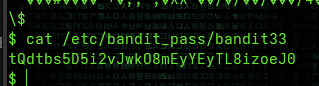
Goal: Escape from the uppercase shell.
- The UPPERCASE shell converts all input to uppercase before execution.
- To bypass this, use
$0which refers to the shell itself:1 2 3 4
>> $0 $ whoami bandit33 $ cat /etc/bandit_pass/bandit33
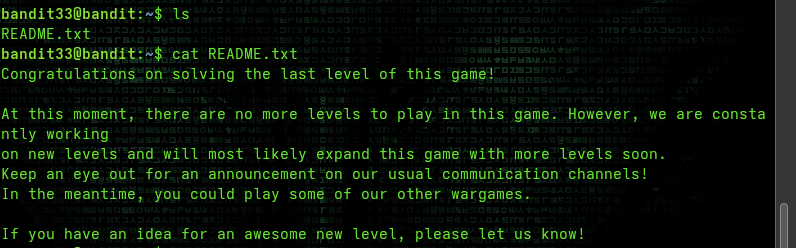
✅ Level 33 → End
Goal: Read the final message.
1
2
ls -la
cat README.txt
Congratulations! You’ve completed all levels of Bandit!
✅ Wrap-Up
In this walkthrough, we’ve learned many essential Linux skills including:
- Basic file operations and navigation
- Text processing and filtering
- Working with encoded and compressed data
- Network tools and services
- Privilege escalation techniques
- Git repository exploration
- Cron jobs and automation
- Shell environment manipulation
Thanks for reading this complete walkthrough of OverTheWire’s Bandit wargame!
📌 Play yourself: OverTheWire: Bandit